How to Pair the Garmin Approach R10
Turn the R10 on, open the Garmin Golf app on your phone, and add the unit as a device over Bluetooth. Pair inside the app, not in your phone's Bluetooth list, so shot data and swing video reach the app.
On this page (9 sections)
- What you need before you pair the Garmin Approach R10
- How to pair the Garmin Approach R10 step by step
- Why pair inside the Garmin Golf app instead of Bluetooth settings
- What to check when the R10 won't pair
- How to confirm the pairing actually works
- How to set up the R10 so it stays paired
- How to pair the R10 again after a phone change or update
- What to do if the app keeps dropping the connection
- Where to go next once the R10 is paired
To pair the Garmin Approach R10, power on the unit, open the Garmin Golf app, and use the app's add-device step to connect over Bluetooth. Keep the phone within a few feet and leave the app open so shot data lands on screen.
The first pairing takes a minute or two, and you only repeat it when you switch phones.
A clean pairing matters because the R10 sends every metric to the app over that one link. Get it right and you'll see club head speed, ball speed, spin and launch angle on your phone as you hit.
Get it wrong and the unit looks dead even when it's working.
What you need before you pair the Garmin Approach R10
You need the R10, a charged phone with the Garmin Golf app installed, and Bluetooth turned on. The unit itself needs enough charge to stay awake through setup and a practice session.
Have your Garmin account details ready. The app uses the account to store rounds, swing clips and club stats, so signing in first saves a restart later.
Keep the phone close to the unit and in sight. A phone mount helps here, and the bundles below include one, so the screen sits at eye level while you set up and hit.
Don't pair in a hurry next to a busy range Wi-Fi hotspot. Move away from crowded networks and other golfers' phones if the app seems slow to find the unit.
How to pair the Garmin Approach R10 step by step
Turn the R10 on first, then add it from inside the Garmin Golf app, not from the phone's Bluetooth menu. The app handles the handshake and confirms when the unit is ready.
- Press the power button on the R10 and wait for it to wake. Give it a few seconds to settle on a flat surface.
- Open the Garmin Golf app and sign in if you haven't already.
- Go to the device or settings area and choose to add a device.
- Pick the Approach R10 when it appears in the list.
- Accept the pairing prompt on the phone and let the app finish connecting.
- Hit a few balls and check that shot data appears in the app.
If the unit doesn't show up, close the app fully and reopen it. Then repeat the add-device step with the phone still near the R10.
Why pair inside the Garmin Golf app instead of Bluetooth settings
Pair through the app because the Garmin Golf app needs to own the connection to read the R10's shot data and swing clips. A plain Bluetooth pairing in phone settings doesn't hand the unit to the app.
When you pair in the phone's Bluetooth list first, the phone grabs the link and the app may sit waiting. Remove the R10 from the phone's paired list, then run the app's add-device step.
The app also manages firmware updates and account sync over that same link. Pairing there keeps everything in one place.
Our guide to the Garmin R10 app covers what the software does once the unit is connected.
What to check when the R10 won't pair
When pairing stalls, check power, Bluetooth and the app version in that order, then restart both ends. Most failed pairings come down to one of those three.
- Confirm the R10 is on and not in sleep mode. A short press wakes it.
- Make sure Bluetooth is on and the phone isn't in airplane mode.
- Update the Garmin Golf app to the latest version from your app store.
- Forget the R10 in the phone's Bluetooth list, then pair through the app again.
- Move away from other Bluetooth devices and busy Wi-Fi.
If a second phone was paired earlier, disconnect it first. The R10 talks to one phone at a time, so an old connection can block a new one.
How to confirm the pairing actually works
Confirm the pairing by hitting three or four balls and watching for live numbers in the app. A green connection light or a device name on screen isn't enough on its own.
Set the unit on level ground behind the ball, about the distance the app shows in its placement guide. Then take a few swings with a mid iron.
Club head speed, ball speed and launch angle should appear within a second or two of each shot.
If the app shows the device but no numbers arrive, the placement is usually the cause. Move the R10 back or forward a few inches and try again.
Check that the unit sits at the right height and isn't tilted.
Swing video should record when the app is set to capture it. Watch one clip back to confirm the video and stats line up.
That proves the link is carrying more than just a name.
How to set up the R10 so it stays paired
Place the unit on a stable stand, keep the phone mounted and leave the app running during a session. That routine keeps the Bluetooth link steady and stops dropouts mid-practice.
A dedicated alignment stand helps here. It holds the R10 on the correct plane and angle, so the unit sees the ball consistently.
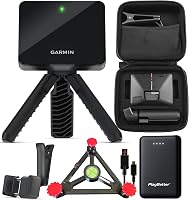
The PlayBetter R10 Stand Bundle pairs the unit with that stand, a tripod, a phone mount and a carry case.
Charge the unit between sessions. Garmin rates the R10 at up to 10 hours of battery life, so a full charge covers several practice sessions.
The Garmin R10 Charger and Stand Bundle adds a 5000mAh power bank and the alignment stand for longer days.
If you already own the R10 and want to know which extras are worth it, our guide to Garmin R10 accessories covers the stand, mount and case choices.
How to pair the R10 again after a phone change or update
Pair the R10 fresh after you switch phones or reinstall the app. Remove the old pairing first, then run the add-device step on the new phone.
On the old phone, open the app and forget the R10, then forget it in the phone's Bluetooth list too. Turn the unit off and back on so it drops any stale connection.
On the new phone, install the Garmin Golf app, sign in with the same account and add the R10. Your saved rounds and swing clips should appear once the account syncs.
After a firmware update, the app usually asks you to reconnect. Accept the prompt and confirm shot data again with a few swings.
What to do if the app keeps dropping the connection
A dropped link usually comes from distance, interference or a phone that is putting the app to sleep. Fix those before blaming the unit.
Keep the phone close to the R10 and set the screen to stay awake during practice. Close other apps that use Bluetooth, like headphones or a smartwatch link.
Move the setup away from a router or a crowded range bay if you can.
Charge both the unit and the phone before a session. A low phone battery can make the app close in the background and lose the link.
If drops continue on one phone, try another phone to isolate the problem. When a second phone holds the link fine, the original phone's battery settings or Bluetooth stack is the likely cause.
Where to go next once the R10 is paired
Once the R10 is paired, open the app's practice mode and hit a few shots to confirm the numbers before you build a session around them. Then set your club distances and start a round.
The pairing is the gate to everything else. After it works, you can play virtual rounds, review swing clips and track stats per club.
If you plan to run the R10 into a third-party simulator, our walkthrough on how to connect the Garmin R10 to GSPro covers that separate setup.
The Certified Brands bundle includes the R10, a 5000mAh power bank and a microfiber cloth. It suits a golfer who already has a stand and wants the unit with backup power.
For the full sequence from unboxing to your first round, see how to use the Garmin Approach R10. That guide picks up where pairing ends, so you can turn a connected unit into real practice.
To sum up how to pair the Garmin Approach R10: power it on, add it inside the Garmin Golf app over Bluetooth, and confirm with a few real shots. Pick the PlayBetter Stand Bundle if you want the stand and mount in one box.
Pick the Garmin Charger and Stand Bundle for the power bank, or the Certified Brands bundle if you only need backup power.
Frequently asked questions
Does the Garmin Approach R10 pair over Bluetooth or Wi-Fi?
The R10 pairs to the Garmin Golf app over Bluetooth. Wi-Fi is not part of the pairing step; the unit sends shot data to your phone through the Bluetooth link while the app is open.
How far should the R10 be from the phone?
Keep the phone within a few feet of the unit, on the mount that came with your bundle. Close range keeps the Bluetooth link steady and lets you see the screen without leaving the bay.
Can two phones pair to one R10 at the same time?
No. Pair one phone at a time and disconnect the first before adding a second.
That keeps the shot data going to the screen you are actually watching.
Why does the Garmin Golf app not find my R10?
Check that the unit is powered on and awake, that Bluetooth is on for the phone, and that the R10 is not still connected to another device. Restart the app, then run the add-device step again.
Do I need to pair the R10 again after changing phones?
Yes. A new phone needs its own pairing.
Remove the R10 from the old phone's app first, then add it on the new one so only one phone holds the connection.